What is a TUI (Text User Interface)?
And why do businesses still use it?
When people hear “interface,” they usually imagine windows, buttons, and menus. That is a GUI (Graphical User Interface). A TUI is different: it is a Text User Interface; a structured, text-based interface displayed in a terminal window (often a black or light “console” screen, but it can display colors, and even sophisticated visuals like graphs/plots/charts, as we will see later). It is still interactive (you can navigate, filter, search, confirm actions), but it uses text layout instead of graphical widgets.
TUIs are common in engineering, but they are also surprisingly practical for companies with heavy operations and document workflows, especially when reliability, speed, and simplicity (ease of use and deployment) matter more than visual polish.
TUI vs. “command line”
A TUI is not the same as typing commands.
- Command line (CLI): you type commands like
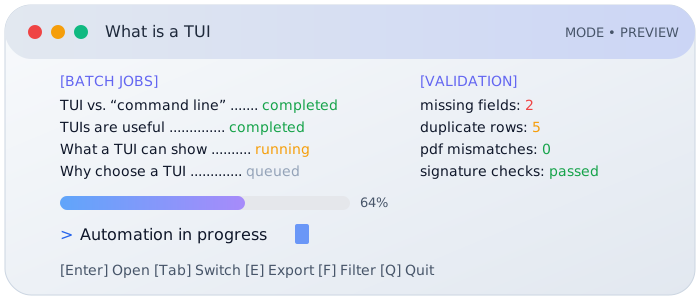
run_process --month 2026-02and get output (requires the user to know basics of command line tools; command arguments can be optional or positional, etc.). - TUI: you see a structured screen with labels, progress, status, tables, and prompts. You might press keys to switch views, start a run, review results, or export files—without having to memorize commands.
In other words: a TUI is a “text-based app” that opens a window, and that window happens to look like a terminal (at first glance).
Where TUIs are useful in organizations/teams with document-heavy workflows
Many companies in logistics, tourism operations, trading, and back-office administration deal with workflows like:
- exporting data from a system,
- cleaning spreadsheets,
- generating PDFs (invoices, labels, packing lists, certificates, admin docs),
- renaming and filing documents,
- emailing or uploading deliverables,
- handling exceptions and re-runs.
These workflows have a few common requirements: they must be repeatable, auditable, and safe, but they often involve manual work at some point in the workflow. Given that these workflows are often repeated many times over (using dozens, hundreds, or thousands of files), the probability of errors or inconsistencies arising scales with the number of times the workflow is repeated. i.e., the more times you run it, the more chances for small inconsistencies.
A well-designed TUI coupled with carefully thought-out automations can make performing these tasks a breeze instead of a recurring pain.
What a TUI can show
A TUI can provide a clear operational “control panel,” for example:
- Run status: queued / running / completed / failed
- Progress: how many files processed, how many remaining
- Validation results: missing fields, formatting errors, duplicates
- Outputs: which PDFs were generated, where they were saved
- Exceptions: which cases need manual review
- Run history: what happened yesterday or last week, with timestamps
- Safe-run design: confirmation prompts before destructive steps, plus “copy-first” processing so originals are not modified
- Mini charts / plots: simple graphs displayed directly in the TUI (for example: throughput over time, error-rate trends, and volume breakdowns), useful for spotting bottlenecks or anomalies at a glance
For managers, the value is that a batch process becomes observable (easy to see/review/audit): it is clear what the automation did, what it produced, and what requires attention.
Why choose a TUI instead of a web app or a desktop app?
A TUI is not “better” than a GUI in general. It is better in specific conditions that are common in operations.
1) Reliability in controlled environments
TUIs typically run as local tools or on a server, with fewer moving parts than a full web application. This can reduce the number of ways a run can fail for internal tools that need to run every day, week, or month.
2) Fast operation for repetitive tasks
When the operator’s job is to run the same workflow repeatedly (with slight variations), a TUI can be faster than clicking through multi-step screens.
3) Remote-friendly and low overhead
TUIs work well over remote connections (including low bandwidth) and do not require heavy graphical environments. This matters when tools are run on shared machines or internal servers.
4) Strong fit with automation and logging
TUIs fit naturally with automation workflows:
- structured logs,
- saved run summaries,
- reproducible runs,
- easy export of results for reporting.
For businesses with compliance needs or partner accountability, “what happened during the run” often matters as much as “did it work.”
Concrete examples (common in logistics and document operations)
A TUI can be used to operate tools such as:
- Invoice / label batch generation from Excel + templates
- Document bundle creation (per customer or per shipment)
- Data validation dashboards before sending to partners
- File naming and foldering tools (consistent conventions)
- Re-run tools: reprocess only failed items, not the whole batch
- Daily operational reporting: counts, exceptions, totals, trend checks
- Throughput charts: a small time-series plot showing “documents processed per hour” during a batch run, to spot slowdowns or bottlenecks
- Error-rate trend plots: a chart of validation errors (missing fields, duplicates, formatting issues) over days/weeks, to see whether data quality is improving or drifting
- Volume distribution charts: simple bar charts showing volumes by customer / partner / route / document type, useful for weekly operational summaries
In each case, the TUI acts as the operator-facing layer (the screen the team uses): a clear “single screen” to start, monitor, and verify the run.
When a TUI is not the right choice
TUIs are not ideal when:
- the workflow requires complex, multi-person collaboration in a browser,
- heavy free-form content editing is central,
- the user base is large and expects a modern app-like interface,
- rich visuals are the primary need (although TUIs can still display basic charts and summaries).
In those situations, a web UI or a standard desktop UI may be more appropriate.
How Shifuto uses TUIs
In Shifuto-style internal automation, a TUI is often used to make “automations you can operate”:
- safe-by-default runs (copy-first, reversible steps),
- clear status and exceptions,
- run history and traceability / audit trail,
- exports that match business processes (folders, PDFs, spreadsheets, summaries).
The goal is not to make something “developer-only.” The goal is a tool that operations teams can run confidently, with fewer manual steps and fewer surprises.