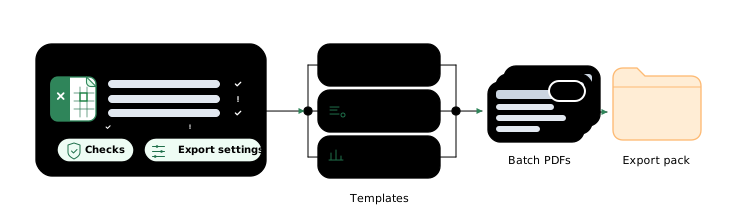
Excel to PDF automation for operations teams
How operations teams can turn repetitive Excel-to-PDF work into a reliable, reviewable process.
Excel is one of the most widely used operational tools in business.
It is flexible, familiar, and already embedded in how teams work. In many companies, important processes still depend on Excel files: invoices, schedules, confirmations, travel documents, reports, internal forms, pricing sheets, certificates, and many other outputs that eventually need to become PDFs.
That is not a weakness. In many cases, it is simply how real operations work.
The problem is that once a team starts producing large numbers of PDFs from Excel, the process often becomes manual, repetitive, and fragile.
Excel is powerful, but the workflow around it is often the bottleneck
Most teams do not struggle because Excel itself is insufficient.
They struggle because the surrounding process is hard to operate consistently:
- opening the right workbook version
- updating the right cells or tabs
- checking formulas and references
- exporting the correct sheets in the correct order
- saving PDFs with the correct names in the correct folders
- repeating this many times without missing anything
This kind of work is common in operations teams. It is also exactly the kind of work where small mistakes create extra downstream work.
A filename mistake, an outdated link, a hidden layout issue, or a wrong export range can easily turn into resends, corrections, or manual investigation later.
Why “power user” Excel workflows often hit a limit
Many companies already rely on advanced Excel users.
They use formulas, templates, VBA, and macros to push Excel much further than a casual user would. That often works well for a while. But these workflows usually become harder to maintain as the process grows.
Typical limits appear in a few areas:
- Macros are tied closely to the workbook environment. They often depend on a specific file structure, sheet naming, local settings, or installed desktop setup.
- Logic becomes hard to review. A workbook with years of incremental macro changes can be difficult for another person to understand safely.
- Error handling is often weak. When something unexpected happens, the process may stop in an unclear state, or worse, continue silently.
- Integration is limited. VBA is not a convenient way to connect Excel with modern file pipelines, logs, validation layers, or external systems.
- Maintenance depends on one person. Many teams end up with a “spreadsheet owner” who is the only one who really knows how the process works.
This does not mean VBA or macros are bad. They are often useful and practical. But they are not always the best long-term foundation for a reliable document workflow.
Excel can be extended far beyond native macros
One important point is often overlooked: Excel is not limited to what can be done inside Excel alone.
There are many libraries and tools that can expand what is possible. In practice, this means teams can keep Excel as the working surface while moving the operational logic into a more robust automation layer.
Python is especially useful here because it has a large ecosystem for working with spreadsheets, files, validation rules, PDFs, and desktop automation.
Examples include:
- reading and modifying workbook data
- generating rows or sheets from structured source data
- applying repeatable validation checks before export
- batch-renaming and organizing outputs
- creating run logs and summaries
- combining Excel processing with PDF post-processing
- checking for missing inputs, duplicates, or inconsistent values before documents are produced
Depending on the workbook and the required fidelity, different approaches are possible. Some tools are good for reading and writing workbook contents. Others are better for orchestrating Excel itself as part of a controlled export process.
The key point is that Excel does not need to be replaced. It can be supported.
Bulk Excel-to-PDF export is possible, but reliability matters
Exporting Excel files to PDF in bulk is absolutely possible.
The difficulty is not usually “can this be exported?” The real difficulty is “can this be exported reliably, repeatedly, and with the same quality a careful human operator would expect?”
That requires attention to details such as:
- preserving page layout and print areas
- keeping fonts, spacing, and colors consistent
- exporting the intended sheets only
- handling hidden sheets or helper tabs correctly
- making sure formulas are up to date before export
- dealing with broken references or external links
- preventing the wrong workbook state from being exported
- ensuring filenames and folder structure are consistent
These details matter because PDF export is often the point where internal data becomes an external-facing document.
If the visual layout shifts, if a linked cell fails, or if the wrong tab is included, the result may look unprofessional or contain incorrect information.
Why Windows COM still matters
For high-fidelity Excel automation, Windows COM is often an important part of the solution.
That is because Microsoft Excel itself remains the most reliable rendering engine for many real-world workbooks, especially when the file uses features that third-party libraries do not fully reproduce. This includes workbook behaviors tied to Excel’s native calculation, print settings, formatting, charts, page breaks, and export behavior.
In practice, that means a common robust pattern is:
- prepare or validate the workbook data programmatically
- open and control Excel itself through Windows automation
- export the workbook or selected sheets to PDF using Excel’s own engine
- verify and organize the outputs
This approach is often the safest when layout fidelity matters.
It is especially relevant for operational documents where the output must closely match what a skilled staff member would produce manually in Excel.
A reliable process needs more than just export code
A good Excel-to-PDF automation is not only about pressing “Export” many times.
It should behave like a controlled operational run.
That usually means:
- explicit input parameters
- checks before export
- clear handling of exceptions
- stable naming and filing rules
- a record of what was generated
- deliberate review points where needed
For example, before generating 140 PDFs, the tool might first check:
- whether all required source files are present
- whether external workbook links are available or broken
- whether invoice numbers or IDs are duplicated
- whether output folders already contain conflicting files
- whether the selected period matches the workbook content
- whether the workbook has unresolved warnings or invalid fields
This is what turns a script into a usable internal tool.
Typical use cases for operations teams
Excel-to-PDF automation is useful anywhere a team repeatedly converts structured spreadsheet content into formal output documents.
Examples include:
- invoices
- travel itineraries
- schedules and rosters
- quotations and cost breakdowns
- certificates
- internal reporting packs
- forms and client-facing summaries
- transport or event documents assembled from tabular data
In these workflows, the value is usually not “AI” or “digital transformation” in the abstract.
The value is simpler:
- less repetitive work
- fewer export mistakes
- faster turnaround
- easier review
- more consistent output
- less dependence on memory and manual checking
What Shifuto focuses on
At Shifuto, this is a core area of work.
We have developed practical expertise in Excel- and PDF-based operational workflows, especially the kind that already exist inside real teams and need to become safer, faster, and easier to run.
That includes workflows where:
- Excel remains the source template
- PDFs need to match the human-produced version closely
- batch export is required
- validation matters before output is created
- document filing and naming must stay consistent
- the process needs to be repeatable by a team, not just one expert user
In practice, virtually any Excel-and-PDF workflow can be improved or automated to a high standard. The goal is not a flashy demo. The goal is operational reliability.
When done properly, the result is usually comparable to careful human execution, but faster, more consistent, and less error-prone.
What to aim for
A good Excel-to-PDF automation should make the workflow feel more controlled, not more opaque.
You should be able to answer basic operational questions clearly:
- What inputs were used?
- What checks were run?
- What was exported?
- Where was it saved?
- What failed, and why?
- Can the same run be reproduced safely?
If those questions have clear answers, the process is usually in good shape.
Excel stays in place. The team keeps the workflow they already understand. But the repetitive and fragile parts become structured and reliable.
That is often the best outcome for operations teams: not replacing Excel, but making Excel-based work safer to run at scale.